Approving reward requests
Approve or decline requests, set up auto-approve, and handle refunds.
Who can use this: Owners and admins, or anyone with the Rewards permission.
Requests wait under Manage → Rewards → Approvals. The number next to Rewards in the sidebar shows how many. The coins are already set aside for each one.
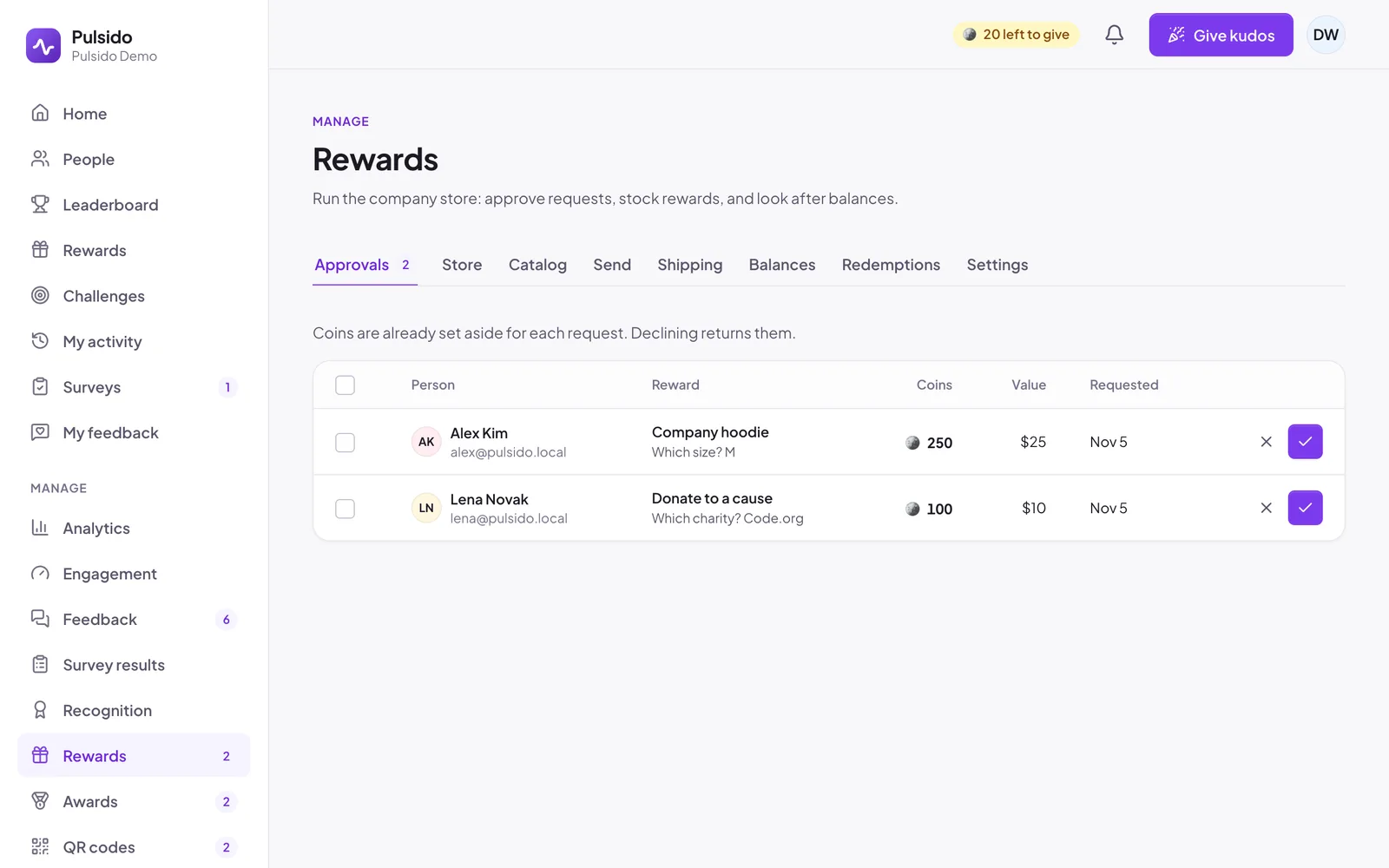
- Click ✓ to approve, or ✕ to decline.
- Tick several to approve or decline them together.
- Declining needs a reason of at least 3 characters. The person sees it, and their coins and the stock come back.
Approving a company store reward sends the person your approval message. Approving a gift card places the order with Tremendous.
Pulsido reminds reward admins about waiting requests on Monday and Tuesday mornings.
Auto-approve#
Under Manage → Rewards → Settings → Approvals, choose:
- Approve every request: an admin says yes or no (default).
- Auto-approve small ones: requests at or under a price you choose (100 coins by default) skip the inbox.
- Auto-approve all: no inbox.
After approval#
Go to Manage → Rewards → Redemptions to see every request in every status, and Export CSV for finance. Open one to:
- Mark delivered, for company store rewards you've handed over.
- Refund, which returns the coins. You'll be asked why, and the person sees your reason.
- Retry order or Resend email, for gift cards. See Funding and failed orders.
Still stuck?
Email us and a person will reply, usually within one working day. hello@pulsido.com