Setting up teams and managers
Mirror your org chart so managers see results and feedback for their own people.
Who can use this: Owners and admins, or anyone with the Teams permission.
Teams power several things in Pulsido:
- Team managers see engagement results and feedback for their team and every team under it, plus recognition analytics for those teams.
- People can send kudos to a whole team.
- You can set a coin allowance for a team.
- Survey audiences and results can be filtered by team.
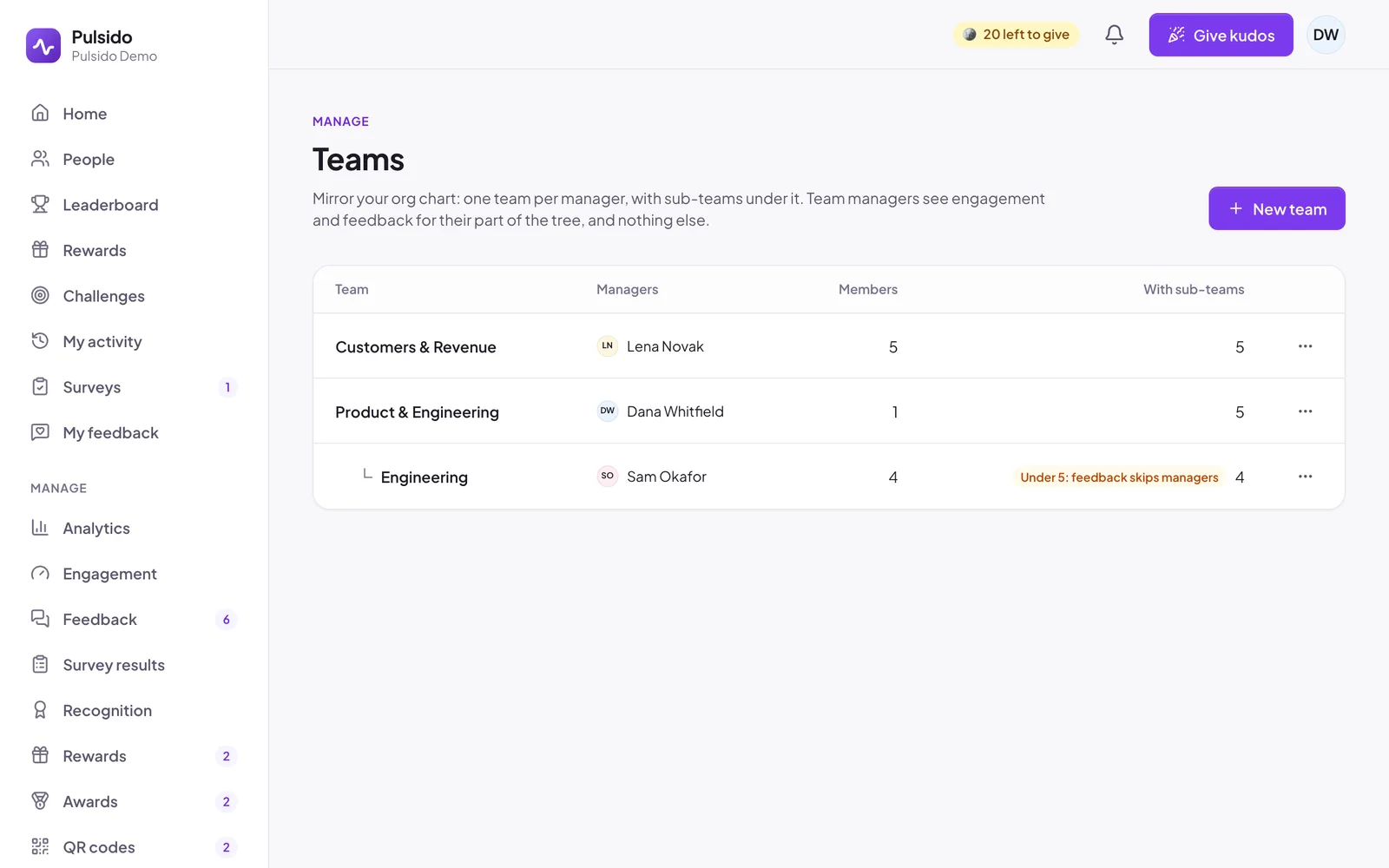
Create a team#
- Go to Manage → Teams and click New team.
- Give it a Name.
- Pick a Parent team, or None (top level). Results roll up to the parent team, and on to the company.
- Add Managers: usually the direct manager. A team can have more than one.
- Add Members: the people who report to this team's managers. Managers aren't counted as members.
- Optionally set a Team allowance. See Custom allowances and coin exclusions.
- Save.
A simple approach is one team per manager, with their direct reports as members, and sub-teams under it for managers who report to them. A person can be in more than one team.
Small teams#
When a team has fewer than 5 people (counting its sub-teams), Pulsido marks it Under 5: feedback skips managers. Confidential feedback from that team goes to owners and executives without the team name, so it can't identify anyone. See How confidentiality works.
Delete a team#
Open the ⋯ menu and choose Delete team. Its sub-teams move up to its parent. Pulse answers already given stay in company results, and its feedback conversations stay with executives.
Still stuck?
Email us and a person will reply, usually within one working day. hello@pulsido.com