Creating a survey
Build a one-off or recurring survey from a template or from scratch, then launch it.
Who can use this: Owners and admins, or anyone with the Surveys permission.
Use surveys for anything the weekly pulse doesn't cover: an annual engagement survey, feedback on an all-hands, a wellbeing check, an exit survey.
Start#
- Go to Manage → Surveys → Surveys and click New survey.
- Pick one of 30 templates, or click Start blank. You can change every question before you launch.
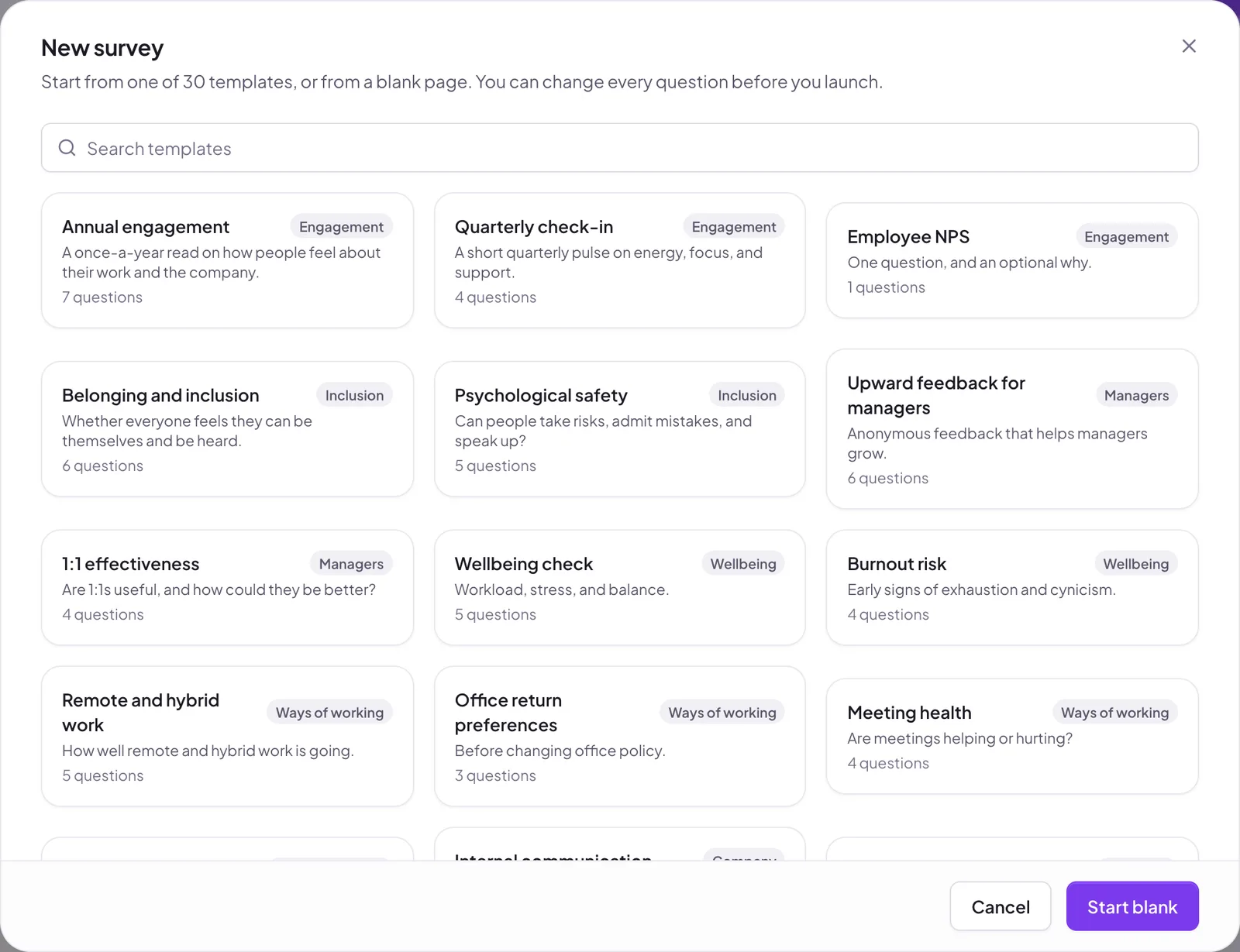
The builder has five steps. Move between them with Back and Next, and click Save to keep a draft.
1. Details#
- Title, and an optional Description shown at the top. Say why you're asking and what happens next.
- Confidential (nobody sees who answered what; results need 3 or more people) or Named (readers of the results see each person's answers).
2. Questions#
Add, reorder, and remove questions. Each can be:
| Type | What people answer |
|---|---|
| Agree / disagree | Five points, from Strongly disagree to Strongly agree |
| Multiple choice | 2 to 10 choices. Tick People can pick more than one to allow several. |
| Text | Free text |
| eNPS | 0 to 10. One per survey. |
Mark questions Required, and turn on Allow a comment to let people explain their answer. Comments become feedback conversations you can reply to.
3. Audience#
Send to Everyone, chosen Teams (each includes its sub-teams and managers), chosen People, or a Segment. A segment is worked out each time the survey sends, so recurring surveys follow people in and out of it. See Segments.
Leave Remind people who haven't answered on to remind them after 2 days and again after 4.
4. Schedule#
- Send: when you launch, or at a date.
- Repeat: once, every day, every week, every month, or every quarter.
- For a one-off survey, Close on a date, or leave it empty to close it yourself. Close as soon as everyone has answered closes it early.
A recurring survey's run closes when the next one opens.
5. Wrap up#
Set an optional Reward for answering in coins, check the review, then click Launch now (or Schedule for a later date).
Once a survey launches, its questions and audience are locked. You can still change its wording, reminders, and close date. Close survey at the top stops it early; results stay.
Still stuck?
Email us and a person will reply, usually within one working day. hello@pulsido.com