Inviting your team
Send each person an invite link, or let your Slack workspace join by signing in with Slack.
Who can use this: Owners and admins, or anyone with the Members permission. Anyone can join with Slack once Slack is connected.
There are two ways people join your company in Pulsido. Use either or both.
| Invite links | Sign in with Slack | |
|---|---|---|
| Best for | Anyone, with or without Slack | Everyone in your connected Slack workspace |
| What you do | Invite each email from Manage → Members | Connect Slack once |
| What they do | Open their link, create an account or sign in, click Join | Sign in with Slack, click Join |
Invite people by email#
- Go to Manage → Members and click Invite people.
- Type or paste Emails, separated by commas, spaces, or new lines. Up to 100 at a time.
- Choose a Role: Member or Admin. You can change it later.
- Click Invite.
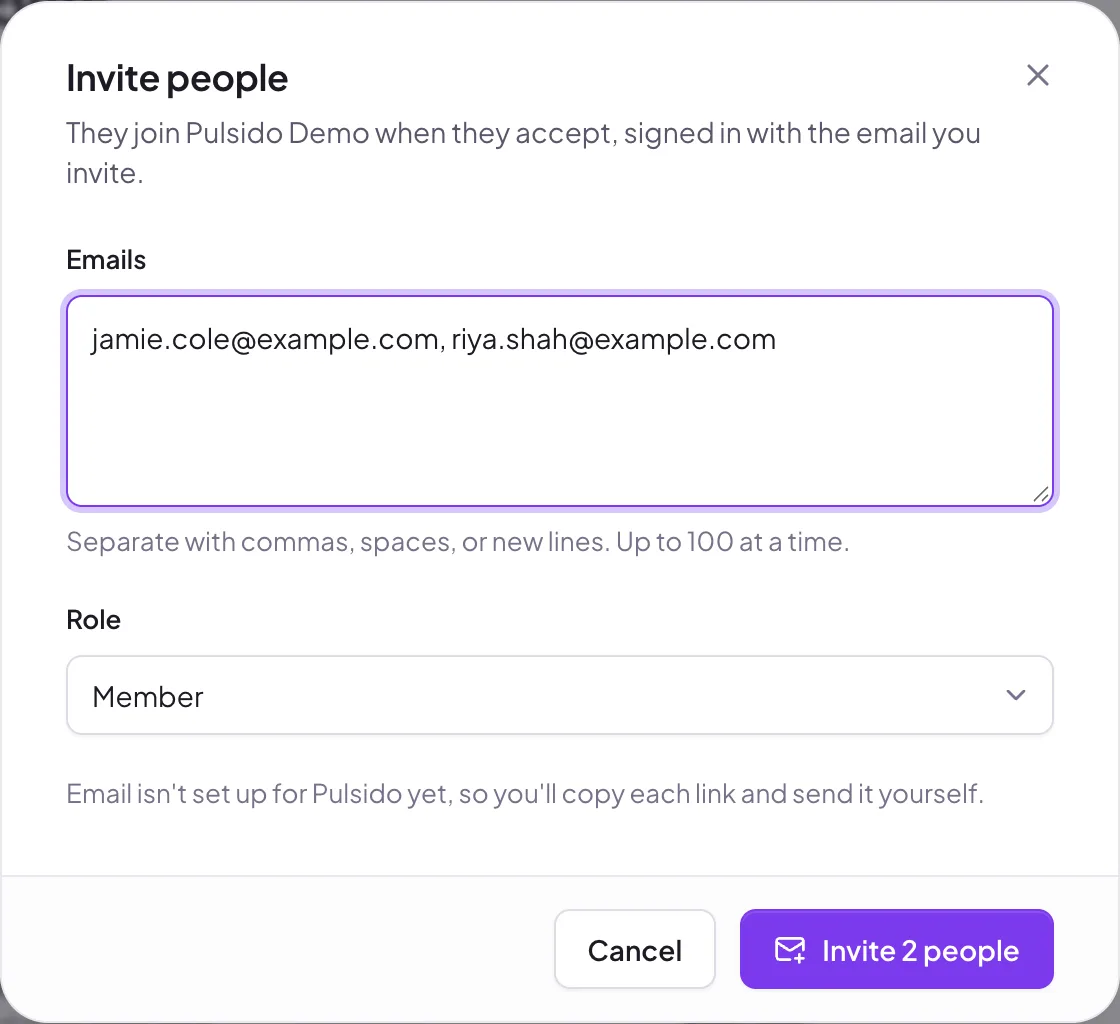
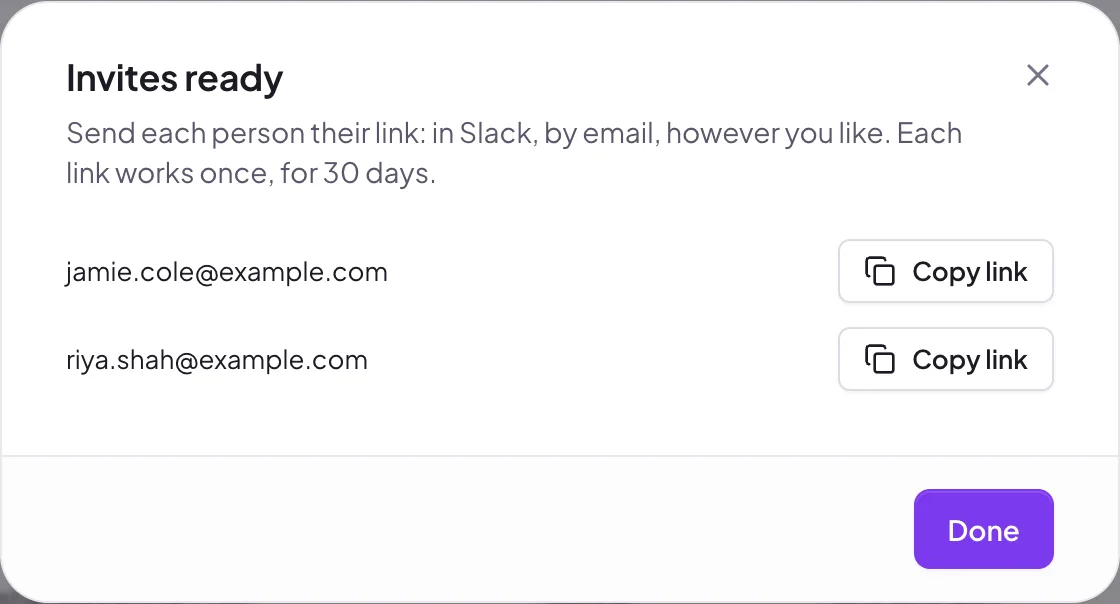
Each person gets their own link. If email is set up for your company, Pulsido emails it to them. Otherwise, click Copy link next to each person and send it however you like: Slack, email, or your onboarding checklist.
People already in Pulsido are listed as Already in Pulsido and aren't invited again.
What the invited person does#
- They open their link. It names your company and who invited them.
- They click Create your account, or I already have an account. The email is filled in for them.
- They click Join with your company's name, and land on Home.
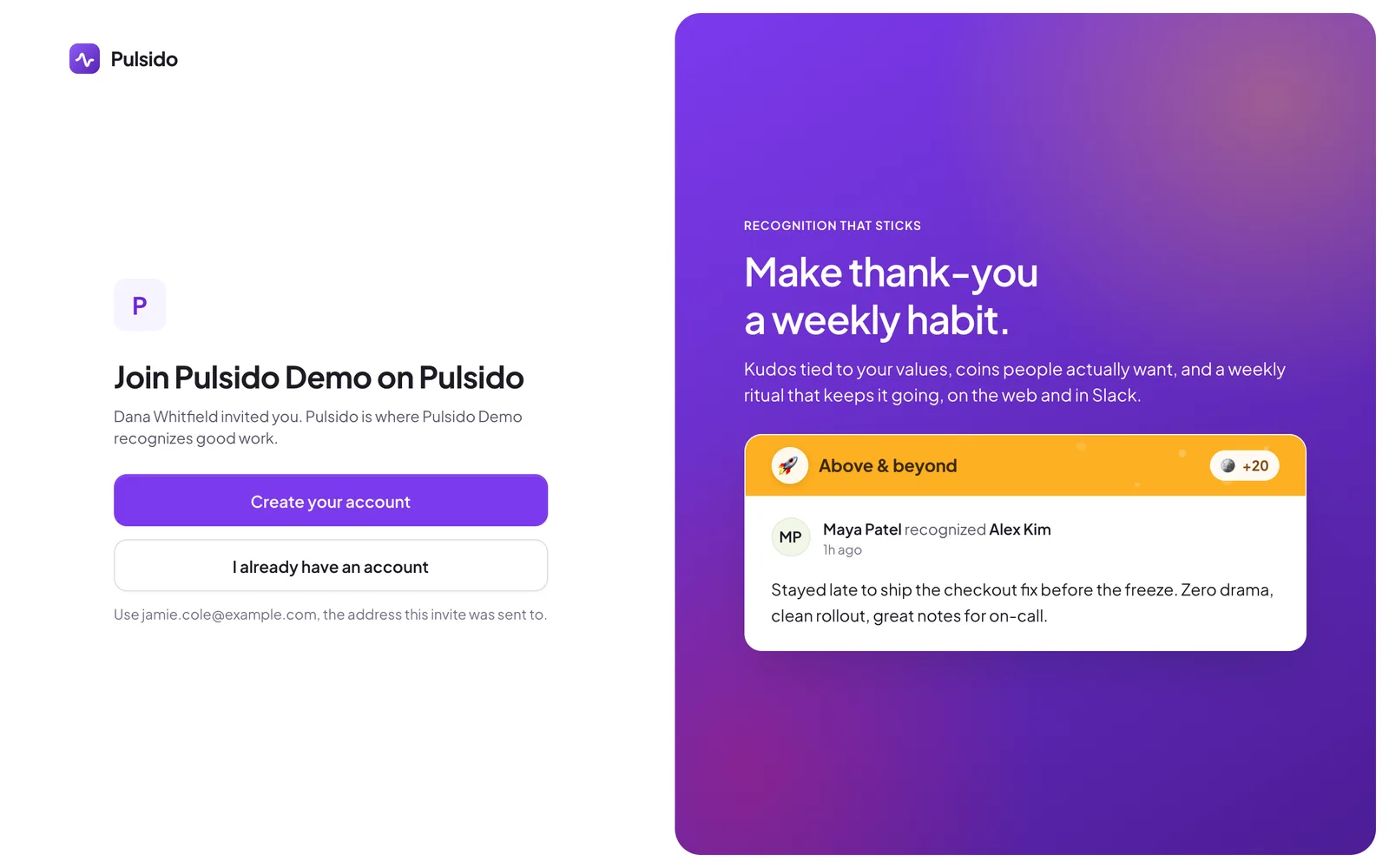
They must sign in with the email you invited. If they're signed in with a different one, the page tells them which email to use.
Pending invites#
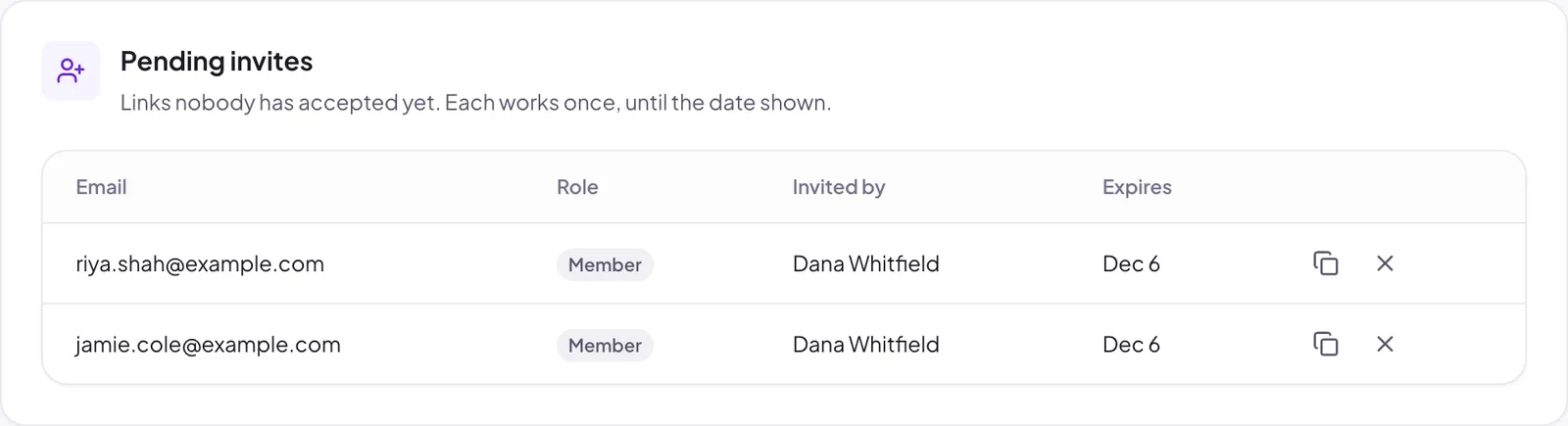
Invites nobody has accepted yet show under Pending invites on the Members tab. Copy a link again, or click ✕ to cancel it. Each link works once and expires after 30 days. Inviting the same email again replaces the old link.
Join with Slack#
Once your company has connected Slack, anyone in that Slack workspace can join without an invite:
- They go to app.pulsido.com and click Continue with Slack.
- On Set up your company, they see Join with your company's name and your Slack workspace.
- They click Join.
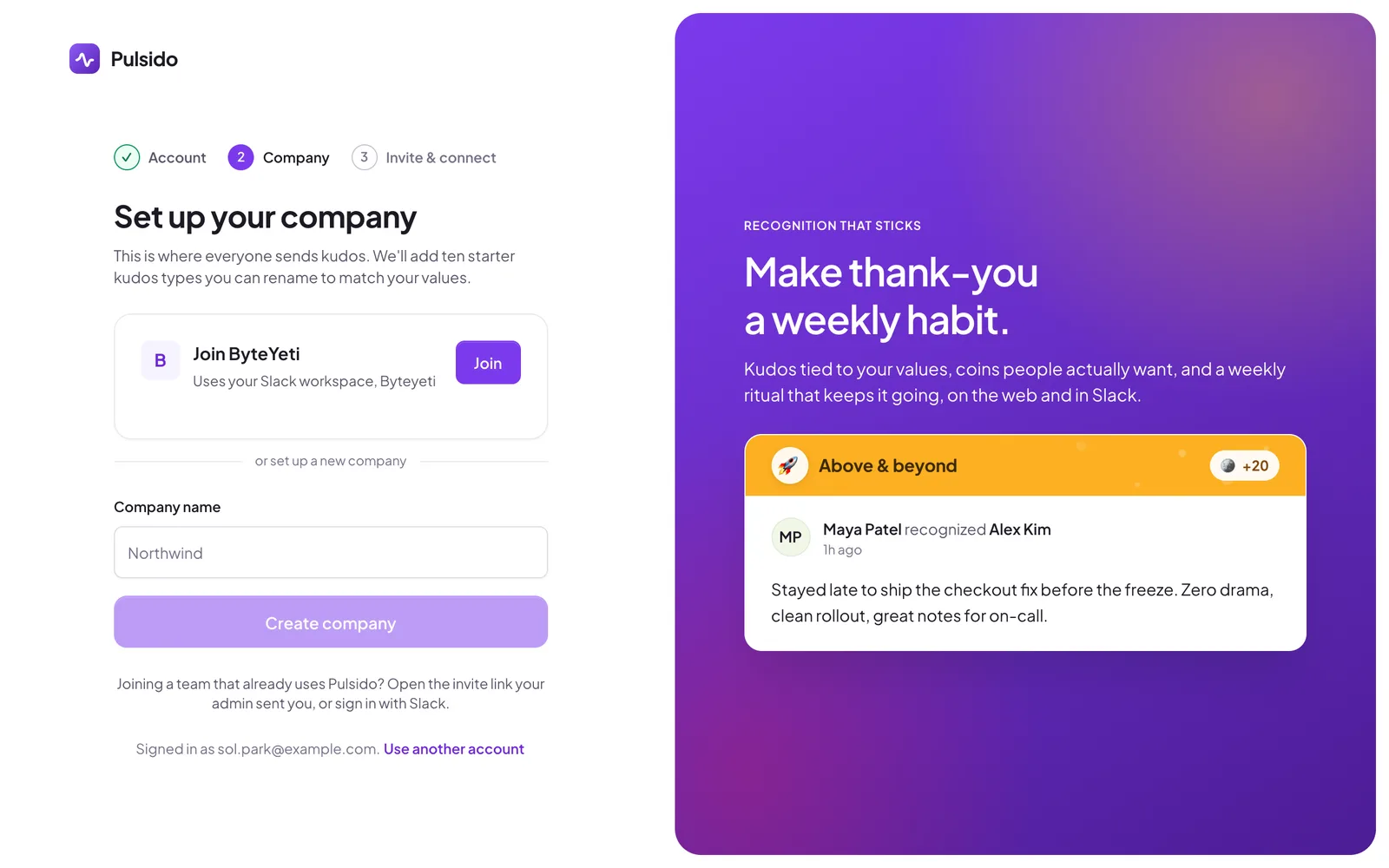
People who join this way start as members, and their Slack account is already connected, so /kudos works for them straight away.
Only people who sign in with Slack get this option. Someone who signs up with an email and password needs an invite link.
Still stuck?
Email us and a person will reply, usually within one working day. hello@pulsido.com